The AI Photographer turns the photos you took on your phone into professional menu photos, right inside the Order Tiger dashboard. It sharpens and relights the shot, swaps takeaway boxes and cluttered tables for a clean, appetising background, and creates a photo from the name and description when an item has none. You see the before and after side by side, add your own wishes if you like, and nothing changes on your menu until you press “Use this photo”.
Key takeaways
- Most restaurants cannot afford a professional photographer, so their menus are full of dark phone photos taken in a busy kitchen.
- The AI Photographer retouches those photos so they look professionally taken, while keeping the dish exactly as you serve it.
- Items with no photo get one created from their name and description, so your menu has no empty gaps.
- You can type your own wishes, such as “served on a plate” or “on a marble table”, and choose to improve the current photo or create a new one.
- It reads your menus, categories and products to understand your cuisine, so a generated photo matches what you actually sell.
- It works for menus, categories, products and options, and for every kind of store, not just restaurants.
Why your photos decide what customers order
When customers order online, they cannot smell the food or see it on the next table. The photo is the dish. A sharp, well-lit photo makes a dish look worth its price, while a dark snap of a dish in a foil tray makes even a great kitchen look careless.
The problem is cost. A professional food shoot means a photographer, lighting, styling and a day of your kitchen’s time, and it has to be repeated every time the menu changes. Most independent restaurants, takeaways and shops simply cannot justify it, so they take photos on their phones between orders. The food is often excellent. The photos rarely do it justice.
The AI Photographer closes that gap. It gives every business on Order Tiger photos that look like a professional shoot, in seconds and from the dashboard you already use.
What the AI Photographer does
The AI Photographer sits next to every photo in your dashboard, under the image of each menu, category, product and option. It does three things:
- Improves the photo you have. It sharpens the shot, fixes the light and colours, and replaces distracting backgrounds such as takeaway boxes, pizza boxes, foil trays and cluttered tables with a clean, appetising setting.
- Creates a photo when there is none. It reads the name and description of the item and creates a realistic, professional photo of it.
- Follows your wishes. Type what you want, for example “served on a plate”, “in a takeaway box” or “on a dark slate”, and it takes your request into account.
It is built on Google’s Gemini image model, with instructions we tuned for menus and product photos.
Turn a phone snap into a professional photo
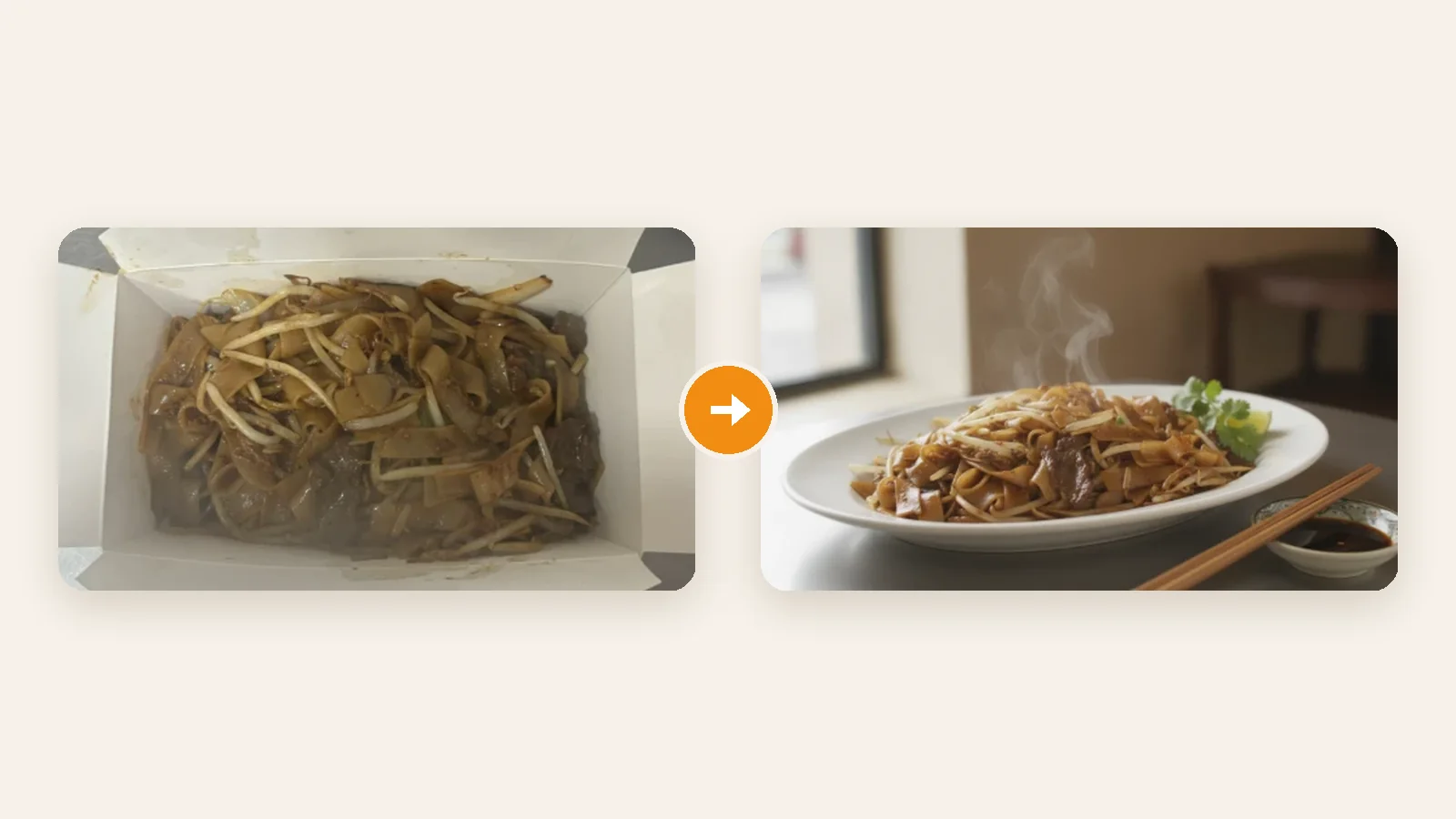
The photo at the top of this article is a real example. A plate of Vietnamese-style flat noodles was photographed in its takeaway box, from above, under kitchen light. The AI Photographer kept the same noodles, beef and bean sprouts, put them on a white plate with chopsticks and a dipping sauce, and gave the shot soft daylight and a blurred restaurant background.
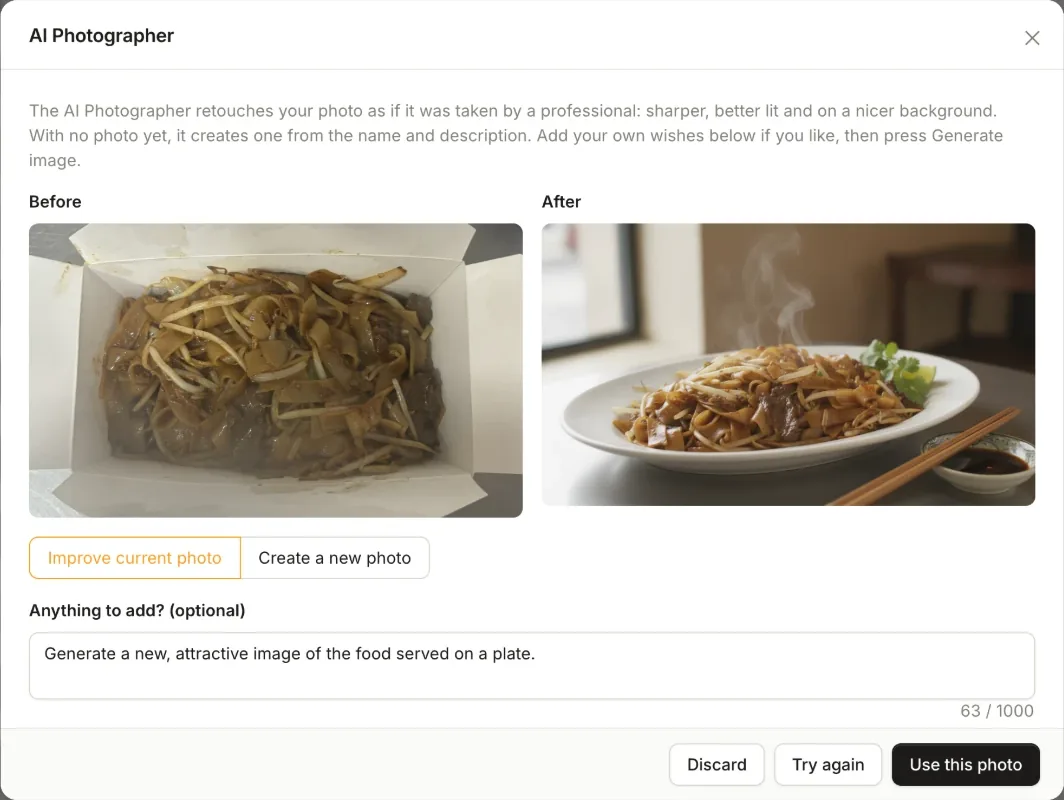
When you improve an existing photo, the item stays the same item. It does not invent ingredients, change the portion or turn your dish into a different recipe. It only changes what a photographer would change: the light, the angle and the setting.
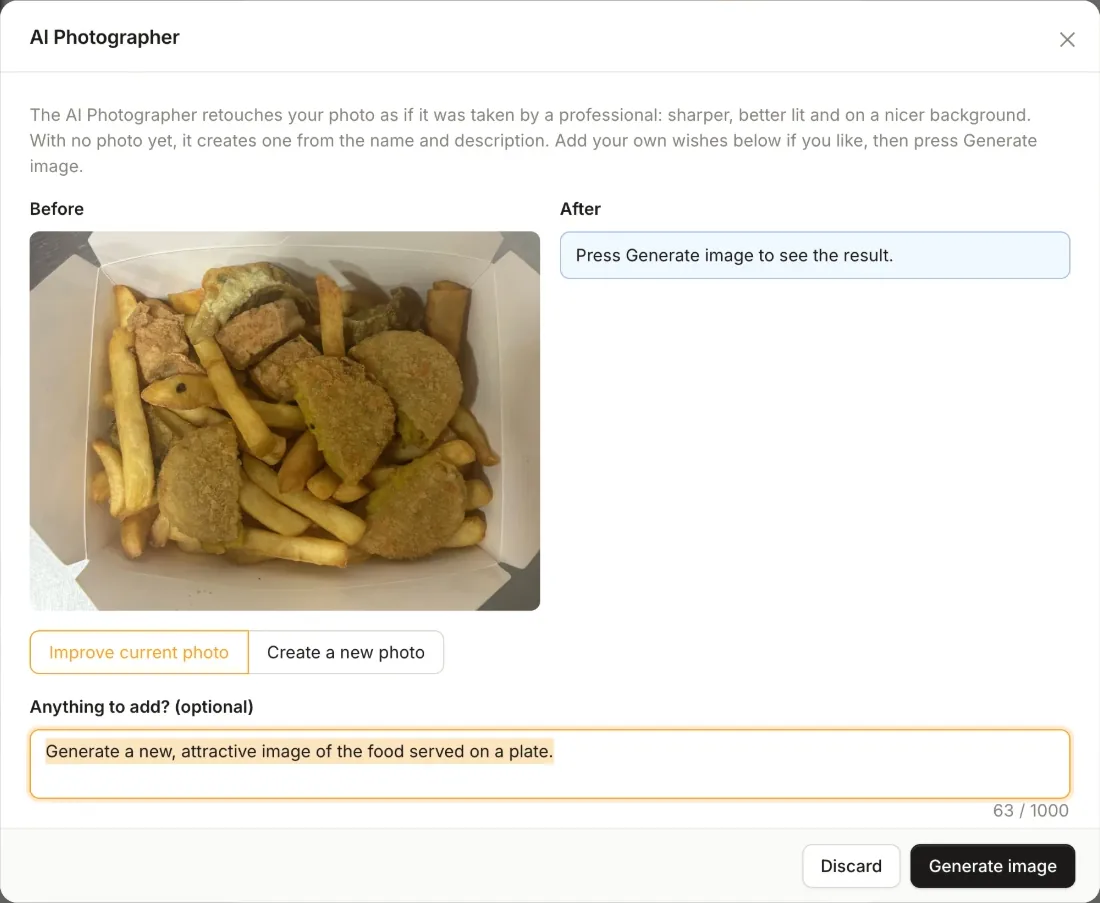
Want something specific? Type it in the “Anything to add?” box. Your request comes first: ask for the food on a plate, a different background, a second portion or a brighter, summery look, and the AI Photographer follows it. Leave the box empty and it uses its professional defaults.
No photo yet? It creates one
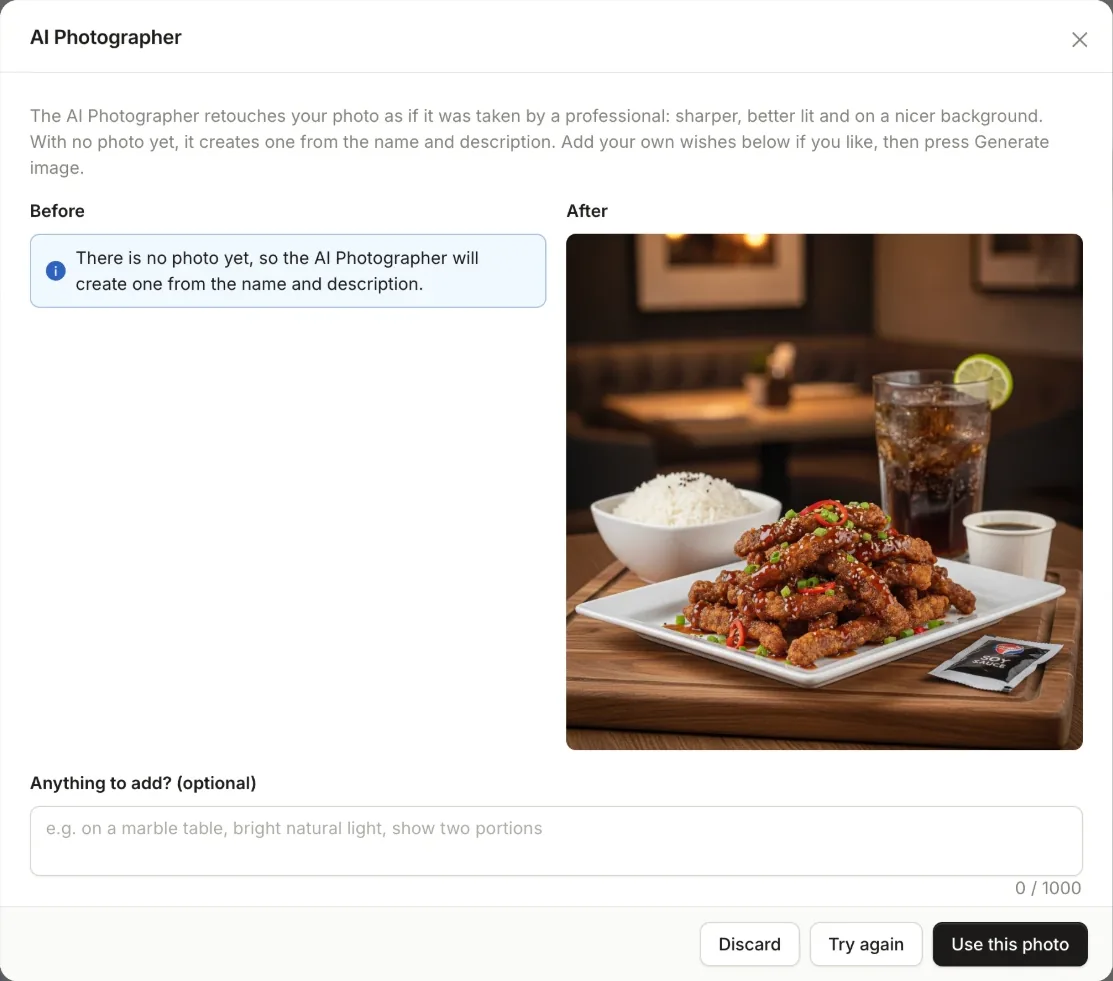
New items often go live with no photo at all, and a menu full of empty placeholders looks unfinished. When an item has no photo, the AI Photographer creates one from its name and description.
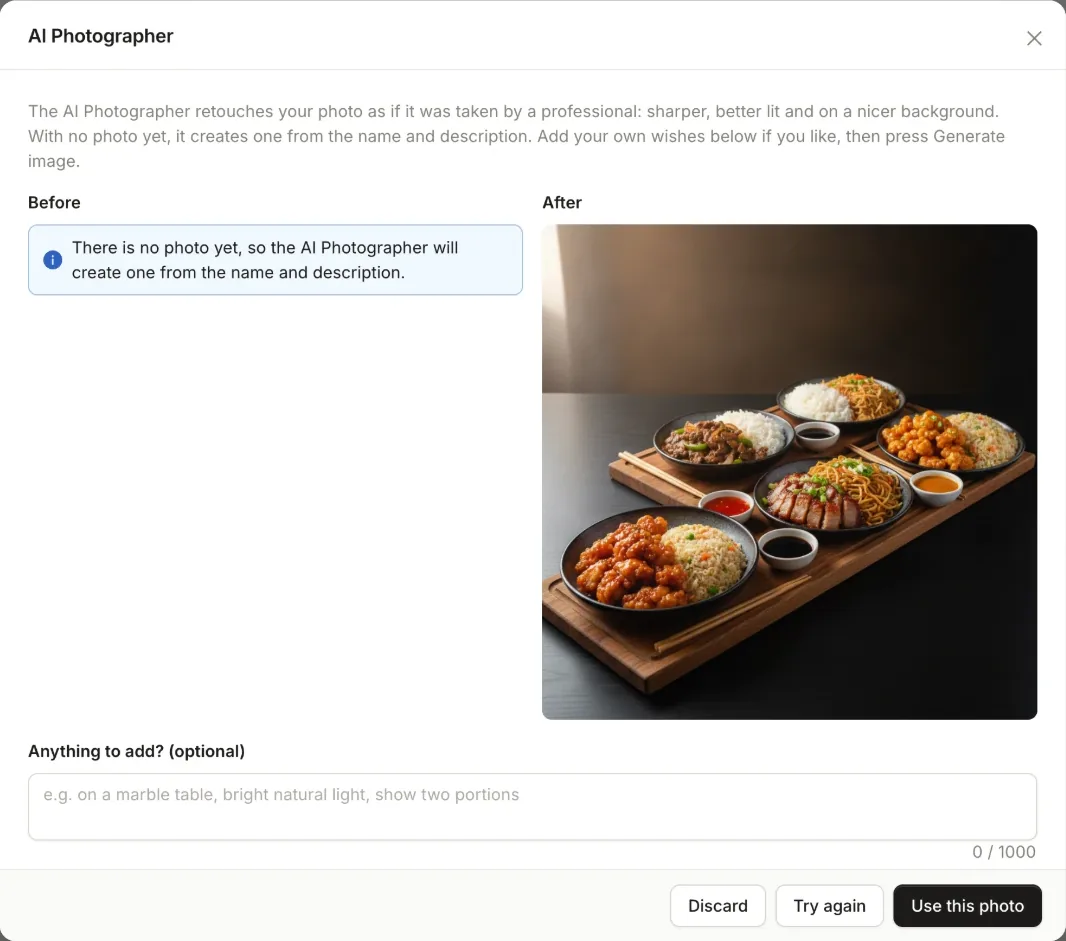
It works for whole menus and categories too. For a menu or category, it creates a cover photo that shows an appealing selection of what you sell, instead of a single dish.
It knows your menu
A menu called “Eat-in only” tells an AI nothing about your food. That is why the AI Photographer looks at your store first. Before it creates anything, it reads your active menus, categories and products to work out your cuisine and the style of your dishes.
So a Chinese takeaway gets noodles, rice and sweet and sour chicken, a pizzeria gets pizza, and a bakery gets bread and pastries, without you having to explain it. Your own request still wins: if you ask for something different, it follows you.
How it works, step by step
- Open the item. Edit or add a menu, category, product or option in the dashboard.
- Click AI Photographer. The button sits right under the photo.
- Choose what you want. Improve the current photo or create a new one, and type any wishes in the “Anything to add?” box.
- Press Generate image. The result appears next to the original in up to a minute.
- Review it. Not quite right? Change your wishes and press Try again as often as you like.
- Use this photo. The new photo replaces the old one and appears on your website and apps straight away.
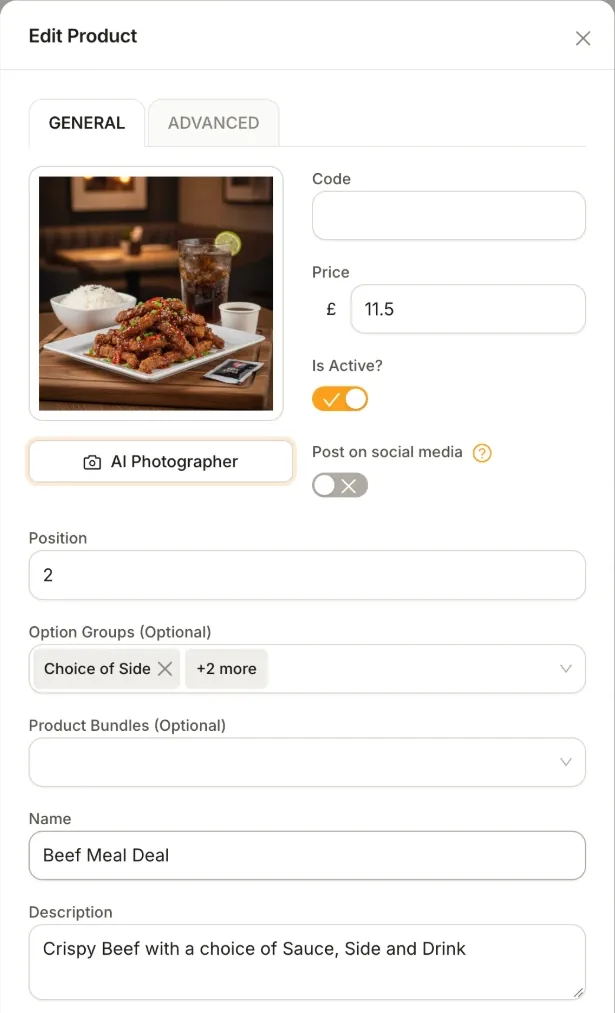
Nothing is saved until you press “Use this photo”, so you can experiment freely. You stay in control of every image on your menu.
Not just for restaurants
Order Tiger powers takeaways and restaurants, but also grocery shops, bakeries, florists, toy shops, electronics stores and more. The AI Photographer works for all of them. Prepared food and drinks get a restaurant-style setting, while everything else gets a clean studio shot on a white or soft neutral background, the kind customers expect from a professional online shop.
For retail products it is even more careful: it keeps the product’s own packaging, labels and logos exactly as they are, so customers receive what they saw.
Tips for the best results
- Start from a clear photo. Any phone will do, but the whole item should be in the frame and in focus.
- Fill in the name and description. The better they describe the item, the more accurate a newly created photo will be.
- Be specific with your wishes. “Served on a white plate on a wooden table” works better than “make it nicer”.
- Keep your style consistent. Use similar wishes across a category so your menu looks like one professional shoot.
- Check it like a customer. Before you press “Use this photo”, make sure the photo shows what the customer will receive.
Frequently asked questions
What is the AI Photographer?
The AI Photographer is built into the Order Tiger dashboard. It retouches the photos of your menus, categories, products and options so they look professionally taken, replaces messy backgrounds such as takeaway boxes, pizza boxes and cluttered tables, and creates a photo from the name and description when an item has none.
Will it change my dish into something else?
No. When it improves a photo, the item stays the same item: the same food, portion and ingredients, or the same packaging and labels for retail products. It only improves the photography and the background, unless you ask it to change something.
Does it only work for restaurants?
No. Order Tiger powers stores that sell food, groceries, toys, electronics, flowers and more. The AI Photographer handles all of them: plated restaurant scenes for dishes and drinks, and clean studio shots for everything else.
Can I tell it what I want?
Yes. Before it generates anything, you can type your own wishes, for example “on a marble table”, “served in a takeaway box” or “show two portions”. Leave the box empty and it uses its professional defaults.
Is anything changed before I approve it?
No. You see the before and after side by side. Nothing is saved until you press “Use this photo”, and you can try again or discard the result as often as you like.
How do I get the AI Photographer?
We are rolling the AI Photographer out gradually. Ask your account manager to give your menu photos a refresh, or book a free demo to see it working on your own menu.